Showing posts with label Just About Tips n Trick. Show all posts

Simple Step to Generate Link with Open New Tab Type

Before, i have discussed about "How to create the hyperlink". And we know now, how to create it with some HTML codes. Of course, we can create hyperlink with many style, such as text style or image style. In this post, we will discuss about, how to create link with open in new tab type with the simple steps, may be we can call it with "manual trick".

By the way, we can look at the sample link below (Click please, to know the effect):
Blogger Tutorial

What happen? Yes, the link opened in new tab. To create it, we just depend the Blogger tools in our Blogger account. The first, you must login to your account (make sure that you want to create a new post, sooo...you can now to go to post creating page). And than, begin to write some text (in the wall post with the "Edit HTML mode" ) => and don't forget to provide an URL link as a link from that text. For example, i will use "Blogger Tutorial" as the text and "http://t4belajarblogger.blogspot.com/" as the URL link. Now the steps:

1. Block the text please
2. And than click the hyperlink generator tool:
3. Fill in the mini popup with the link you will, look at creenshot below
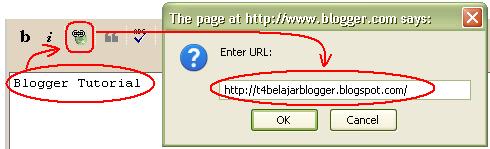
4. The output from above step, likes below

In This step, we have created a link. But it still a link with not open new tab type. To make it as Link with open new tab type, we just need for add some additional code, that is like below:

target="_blank"


And the last, the code will like below:

Real Mode:

<a href="http://t4belajarblogger.blogspot.com/" target="_blank">Blogger Tutorial</a>


FINISH!!!

Oh ya, i call this trick with name "simple trick" because: To generate this type we just need for Link generator Tool (was available in posting wall), and adding target="_blank" (you can type it manually with your keyboard) as an open new tab data. Then, you can use this trick every time for example: when you post the link out content from your blog, Etc. Feel you sure can do it - Blogging is easy!

Hopefully helpful_

Tags: generate a link open new tab, open new tab link creator, simple trick open new tab, new tab link blogspot, my blogger link in new tab

How to Display HTML Code into Your Post

To all of my blogger frnd, if you want to post any html code into your posting form, you can't post it emmediately, so you must encoding/parsing it before to craeate it into Posting mode. Now how to parsing it?

To parsing html code, we just to visit a web who provide a free service to encode our html code, such as Centricle.com, or...you can also to use the others like:

1. elliotswan.com
2. blogcrowds.com
3. eblogtemplates.com

ETC

By the way we can to install encoding tool/parser into our blog, that just a tool by Google. So, this widget is very2 useful, n then have u install it into your blog? You can see it like following


U can to try directly the tool above with your html code, how it work?...if you all interest to install it into your blog homepage (your posting form), you can use following code

<script src="http://www.gmodules.com/ig/ifr?url=http://hosting.gmodules.com/ig/gadgets/file/102462998830435293579/post-Code.xml&amp;up_grows=1000&amp;up_conv1=1&amp;up_conv2=1&amp;up_conv3=1&amp;up_conv4=1&amp;up_conv5=1&amp;synd=open&amp;w=320&amp;h=200&amp;title=Post-Code%3A+code+converter&amp;border=%23ffffff%7C0px%2C1px+solid+%23595959%7C0px%2C1px+solid+%23797979%7C0px%2C2px+solid+%23898989&amp;output=js"></script>


The code's preview will like mine (my parser code), so if you don't like the style, you can to customize it, Click: HERE to customize it.


GoOd Luck []

How to Add Three Columns in The Footer

We know that Too many gadget in the header n sidebar blog, wll effect the speed of load our blog. Therefore many blogger put their blog gadget in the footer but there is a problem, some blog templates only provide a few footer culomns. and how to overcome this problem?

Of Course! to overcome this problem we just need to add some columns in the footer. How to do it?

1. Login to your blogger account.

2. Click the layout option >> Edit HTML

3. Find code

]]></b:skin>
(you can use Ctrl+F to find it)

4. And then put the codes below above the

]]></b:skin>
code:


#footer-column-container {
clear:both;
}
.footer-column {
padding: 10px;
}


5. N Then find code below:


<div id='footer-wrapper'>
<b:section class='footer' id='footer'/>
</div>


6. So put the codes below under the codes in number 5 (above)


<div id='footer-column-container'>
<div id='footer2' style='width: 30%; float: left; margin:0; text-align: left;'>
<b:section class='footer-column' id='col1'
preferred='yes' style='float:left;'/>
</div>

<div id='footer3' style='width: 40%; float: left; margin:0; text-align: left;'>
<b:section class='footer-column' id='col2'
preferred='yes' style='float:left;'/>
</div>

<div id='footer4' style='width: 30%; float: right; margin:0; text-align: left;'>
<b:section class='footer-column' id='col3' preferred='yes' style='float:right;'/>
</div>

<div style='clear:both;'/>
<p> <hr align='center' color='#5d5d54' width='90%'/></p>

<div id='footer-bottom' style='text-align: center; padding: 10px; text-transform: lowercase;'>
<b:section class='footer' id='col-bottom' preferred='yes'>
<b:widget id='Text2' locked='false' title='' type='Text'/>
</b:section>
</div>

<div style='clear:both;'/>
</div>


7. Save your Template.


To see the result of your work, click layout option. You ll see:


BEFORE:


AFTER:


gOOD LucK

Tags: Add three columns in the footer, how to add three columns in the footer, trick to adding three columns, editing template to be three columns in footer

Create A Contact Form in Our Blog

Usually Contact form used by our blog visitors to contact us. And to make it we just need the simple steps, we will use contactify.com service. With this form the visitors will feel mre easy to contact us, because they can send to us an email/quetion without login to their email account before. Just fill the following box (example)


To create your personal contact form, visit: contactify.com

N then login to your email account to activate your contact form. You will get a link like this: http://www.contactify.com/9573d (this is mine).


Good Luck []

Tags: Contact form for blogger blog, create contact form, contact form send question to admin, contact admin form

How to Setting the Number Post in The Home Page

The number of posts in the Home Page will affect the speed of load our blog. Therefore, it would be nice if we only show a few posts (approximately: 7-10 Posts). the steps to setting the number of post:

1. Login to your Blogger Account.

2. Click Setting Option >> Formatting

3. Now, you can set the number of post.


4. Save your Setting.

5. Finish...


Good Luck []

Tags: Set post number on the homepage, how to customizing the number of post, number post on your blogger homepage, the posts on the homepage

How to Show An Older Post in The Blog Home Page

Sometimes we want to put our Older post in the blog home page. Probably because there are several reasons to put it into Home Page, forexample: we want to deliver an announcement, etc. n to make it, we just need the simple steps:

1. Login to your Blogger Accnt.

2. Click Edit Posts.

3. Please choose the post (will be shown in the Home Page).

4. Click "Post Options"

5. Change the older date into the newer date.

6. Finish...


Dont Forget to click "Publish Post" Button! Good Luck []

Tags: Show an older post in homepage, how to change old post to new post, make older post to be a new post, old post in the homepage

Important Step When You want to Editing Your Blog CSS

What the important step? Usually when we want to editing our blog template, we fear there is a mistake in editing Template Code. To resolve the problem, we can use the steps below:

1. Login to your blogger account.

2. Click Layout >> Edit HTML

3. N then, click "Download Full Template"


With the steps above, now we dn't hv to worry^ about that mistake. Make your editing felt relaxed!


Good Luck []

Tags: Important step when editing blog, nice trick when you editing your blog, the step when you editing your blogger blog, trick to downloading your template